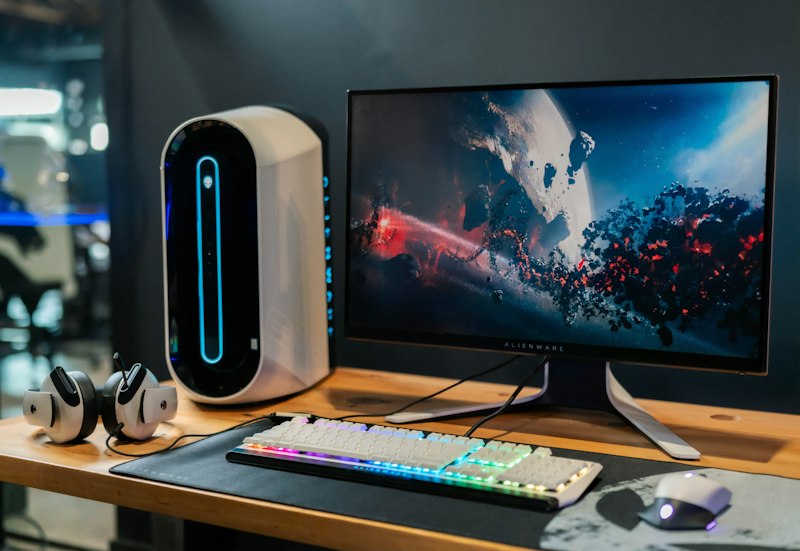
If your Windows computer has suddenly become slow, unresponsive, or takes forever to boot, you’re not alone. Slow Windows performance is one of the most common issues faced by users worldwide. Whether you're using Windows 10 or Windows 11, performance issues can appear over time due to various reasons.
In this detailed guide, you’ll learn why Windows slows down, how to fix it step-by-step, and how to prevent it in the future. Below is a complete Slow Windows performance fix breakdown.
🚨 Common Signs of Slow Windows Performance
Before engaging an ultimate fix slow PC problem protocol, identify the symptoms:
- • Slow startup or boot time
- • Applications take too long to open
- • Frequent freezing or lag
- • High disk or CPU usage
- • Delayed response when clicking
🔍 Main Causes of Slow Windows Performance
1. Too Many Startup Programs
Many apps automatically start when your PC boots, consuming memory and CPU.
2. Low RAM or High Memory Usage
Running multiple heavy apps (like browsers with many tabs) can overload your system.
3. Background Processes
Unused apps running in the background drain system resources.
4. Fragmented or Full Hard Drive
Especially common in HDDs (not SSDs), leading to slower file access.
5. Malware or Viruses
Malicious software can significantly reduce performance.
6. Outdated System or Drivers
Old updates can cause compatibility and speed issues.
7. Visual Effects Overload
Windows animations and effects can slow down low-end PCs.
⚡ Step-by-Step Fixes to Speed Up Windows
If you've ever asked the question of how to speed up Windows 10/11, execute these precise steps below.
✅ 1. Disable Startup Programs
- Press Ctrl + Shift + Esc
- Open Task Manager
- Go to Startup tab
- Disable unnecessary apps
👉 This alone can dramatically improve boot time.
✅ 2. Uninstall Unnecessary Software
- Go to Settings → Apps
- Remove unused or heavy programs
✅ 3. Check for Malware
Use:
- Windows Security
- Or trusted antivirus software
Run a full scan and remove threats.
✅ 4. Clean Temporary Files
- Press Win + R → type temp
- Delete all files
- Repeat with %temp%
Or use Disk Cleanup:
- Search Disk Cleanup
- Select drive → Clean system files
✅ 5. Upgrade to SSD (If Using HDD)
Switching from HDD to SSD can make your PC:
- 5–10x faster
- Faster boot and app loading
✅ 6. Adjust Performance Settings
- Search “Performance Options”
- Select Adjust for best performance
This disables unnecessary animations.
✅ 7. Update Windows and Drivers
- Go to Settings → Update & Security
- Check for updates
Drivers ensure hardware runs efficiently.
✅ 8. Increase Virtual Memory
- Search Advanced system settings
- Go to Performance → Settings → Advanced
- Increase paging file size
✅ 9. Close Background Apps
- Open Task Manager
- End tasks using high CPU or memory
✅ 10. Reset or Reinstall Windows (Last Option)
If nothing works:
- Reset PC (keeps files)
- Or clean install for best performance
🚀 Advanced Tips for Better Performance
- Use lightweight apps instead of heavy ones
- Keep at least 20–30% disk space free
- Restart your PC regularly
- Avoid installing unnecessary browser extensions
- Use tools like disk defragmenter (for HDD only)
🛡️ How to Prevent Slow Performance in Future
Ensure you maintain proper habits moving forward to improve computer performance on a permanent timeline:
- Regularly clean junk files
- Keep Windows updated
- Install apps only from trusted sources
- Monitor startup programs
- Use antivirus protection
🧠 Final Thoughts
Slow Windows performance is frustrating—but in most cases, it’s completely fixable without needing a new computer. This complete Windows running slow solution guide equips you to take control.
By following the steps above, you can bring your system back to life and even make it faster than before. If your PC is still slow after trying everything, it might be time to consider a hardware upgrade.
A definitive guide to restoring your PC to optimal speeds without buying new hardware.
Back to Index arrow_outward